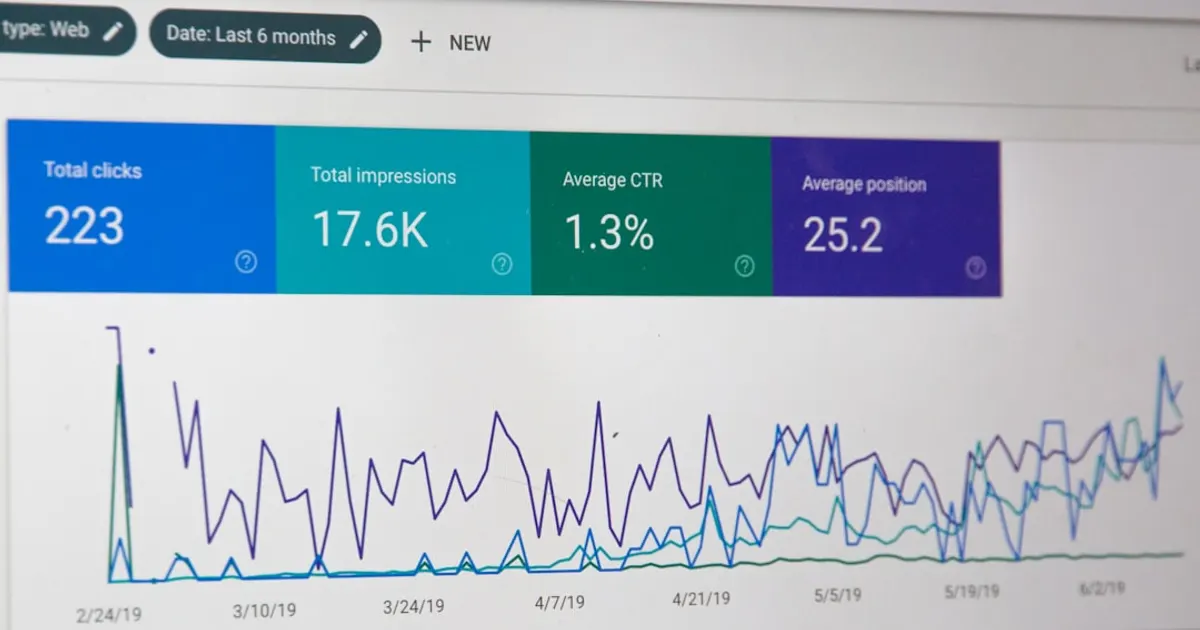
Google Ads conversion tracking for home services tells you exactly which keywords, ads, and campaigns generate real phone calls, form submissions, and booked jobs. Without it, you are spending money blind. Most contractor accounts either have no tracking at all or are tracking the wrong actions. Setting it up correctly takes about 30 minutes and changes everything about how you spend your ad budget.
Most Contractor Google Ads Accounts Have Broken Tracking
Here is a stat that should make every contractor uncomfortable. According to Disruptive Advertising's analysis of over 2,000 Google Ads accounts, roughly 42% of accounts have zero conversion tracking set up. Another 30% to 35% are tracking the wrong things: page views, button clicks, or time on site instead of actual leads. That means approximately 3 out of 4 Google Ads accounts are making budget decisions based on incomplete or meaningless data.
In home services, the numbers are worse. Contractors set up their own accounts or hand them to agencies that skip tracking entirely.
I audited a plumbing contractor's Google Ads account last year that perfectly illustrates this problem. The owner was spending $3,500/month and told me his Google Ads were "working great." He pointed to his conversion column in Google Ads showing 280 conversions last month. Cost per conversion: $12.50. Incredible numbers.
Except they were completely fake.
When I looked at what was being tracked as a "conversion," it was page views. Every single person who landed on his website from an ad counted as a conversion. Not a phone call. Not a form fill. Not a booked job. A page view. His real conversion tracking was nonexistent. He had no idea which keywords were generating leads and which were burning money.
We set up proper tracking: phone calls lasting 60+ seconds, form submissions, and chat initiations. The real numbers came in. His actual conversion count dropped from 280 to 34. His real cost per lead was $103, not $12.50. And 60% of his budget was going to keywords that had never generated a single real lead. Not once. We cut those keywords, reallocated the budget, and within 6 weeks his cost per lead dropped to $52 with the same monthly spend. If that scenario sounds familiar, run a quick check with our free Google Ads waste calculator to see where your budget is leaking.
That is what proper conversion tracking does. It shows you reality. And reality is where profitable decisions happen.
What Conversions Should Home Services Companies Track?
Before you touch Google Ads settings, decide what counts as a conversion. For contractors, there are 4 primary conversion actions worth tracking.
1. Phone Calls from Ads (Call Extensions and Call-Only Ads)
When someone taps your phone number directly from the ad in search results, that is a call from an ad. Google tracks these natively. You set a minimum call duration (I recommend 60 seconds) so hang-ups and wrong numbers do not count. For most contractors, phone calls are the primary lead source and the highest-intent conversion.
2. Phone Calls from Your Website
Someone clicks your ad, lands on your site, then calls the phone number on the page. Google does not track these automatically. You need a Google forwarding number or a third-party call tracking tool (CallRail, CallTrackingMetrics) to connect website calls back to the keyword and ad that drove the visit.
3. Form Submissions
Contact forms, quote request forms, scheduling forms. Any time someone fills out a form on your site after clicking an ad, that is a trackable conversion. You track this by firing a conversion event when the form is successfully submitted, either on a thank-you page load or through a JavaScript event.
4. Chat Initiations
If you use a chat widget on your site (Podium, Birdeye, or the chat built into your CRM), a new chat started after an ad click is a conversion. This requires an event-based tracking setup, usually through Google Tag Manager.
Set up each action as a separate conversion in Google Ads. That gives you granular data: "The keyword 'AC repair Tampa' generated 8 phone calls, 3 form fills, and 1 chat this month." That level of detail is how you make smart budget decisions.
If you are not sure which keywords should be generating leads, our guide on why your Google Ads aren't working walks through the full diagnostic process.
Step-by-Step: Set Up Google Ads Conversion Tracking
There are two methods: the Google Ads tag (simpler) and Google Tag Manager (more flexible). I will walk through both.
Method 1: Google Ads Tag (Direct Install)
This method works for contractors who want tracking up and running fast without dealing with Tag Manager.
1. Log into your Google Ads account and click Tools & Settings in the top menu.
2. Under "Measurement," click Conversions.
3. Click the blue + New conversion action button.
4. Select Website as the conversion source.
5. Enter your website URL. Google will scan it and suggest options. Ignore the suggestions for now.
6. Click Add a conversion action manually.
7. Configure the conversion:
- Category: Select "Submit lead form" for form submissions or "Phone call lead" for calls
- Conversion name: Use something descriptive like "Contact Form Submission" or "Phone Call 60s+"
- Value: Enter your average lead value (more on this below)
- Count: Select "One" for lead gen (you want one conversion per person, not per form fill if they submit twice)
- Click-through conversion window: 30 days works for most contractors
- Attribution model: "Data-driven" if available, otherwise "Last click"
8. Click Create and continue. Google will give you a Global Site Tag snippet and an Event Snippet.
9. Install the Global Site Tag on every page of your website, in the <head> section.
10. Install the Event Snippet on your thank-you page (the page that loads after a form submission) or fire it on form submit using an onclick handler.
Method 2: Google Tag Manager (Recommended)
Google Tag Manager (GTM) is the better long-term option. It keeps all your tracking in one place and lets you add, modify, or remove tracking without touching your website code. If you plan to track multiple conversion types, use GTM.
1. Create a free Google Tag Manager account if you do not have one. Install the GTM container snippet on every page of your site.
2. In Google Ads, create your conversion action (steps 1 through 7 above). When you get to the installation step, select Use Google Tag Manager.
3. Google Ads will give you a Conversion ID and a Conversion Label. Copy both.
4. In GTM, click Tags in the left menu, then New.
5. Name the tag (e.g., "Google Ads - Contact Form Conversion").
6. Click Tag Configuration and select Google Ads Conversion Tracking.
7. Paste in your Conversion ID and Conversion Label.
8. Click Triggering and set the trigger. For a thank-you page: use "Page View" trigger where the URL contains "/thank-you" or your confirmation page path. For a JavaScript form event: create a Custom Event trigger matching the event your form fires on submission.
9. Save the tag and click Submit to publish the container.
10. Use GTM's Preview mode to test. Fill out your own form and verify the tag fires in the Tag Assistant panel.
One container. Multiple conversion tags. No code changes needed when you add or modify tracking later. That is why GTM wins for any contractor running serious Google Ads campaigns.
Phone Call Conversion Tracking: The Full Setup
Phone calls are the lifeblood of home services leads. There are two distinct types of call tracking, and you need both.
Call Extensions and Call-Only Ads
These are calls made directly from your ad in search results. The person never visits your website. They tap the phone number shown in the ad.
1. In Google Ads, go to Tools & Settings > Conversions.
2. Click + New conversion action and select Phone calls.
3. Choose Calls from ads using call extensions or call-only ads.
4. Set the minimum call duration. I recommend 60 seconds. A 60-second call usually means a real conversation happened. Anything shorter is likely a wrong number, price check, or hang-up.
5. Set count to "One" and the conversion window to 30 days.
6. Save. This tracking works automatically on any campaign using call extensions.
Website Call Tracking (Calls from Your Landing Pages)
This tracks calls from people who clicked your ad, landed on your site, and then dialed your phone number from the page. You have two options.
Option A: Google Forwarding Number. Google replaces the phone number on your site with a trackable forwarding number for visitors who arrived via a Google ad. In Google Ads, create a phone call conversion action, select Calls to a phone number on your website, enter your business number, set the 60-second minimum duration, and install the provided snippet on every page that shows your phone number. The snippet dynamically swaps your number with a forwarding number for ad visitors.
Option B: Third-Party Call Tracking. Tools like CallRail or CallTrackingMetrics give you dedicated tracking numbers plus call recordings, lead scoring, and CRM integration. They pass conversion data back to Google Ads via API. Cost: $40 to $100/month depending on volume. For contractors spending over $2,000/month on ads, the investment pays for itself within the first month.
Form Submission Tracking
Form tracking is straightforward. The key is making sure you track actual submissions, not form views.
Thank-You Page Method (Simplest)
If your contact form redirects to a thank-you page after submission (like /contact/thank-you/), create a Google Ads Conversion Tracking tag in GTM and set the trigger to "Page View" where the URL contains your thank-you page path. Publish. Every form submission that loads the thank-you page fires the conversion.
Event-Based Method (For AJAX Forms)
Modern forms that submit without a page reload need event-based tracking. Have your form push a dataLayer event when submission succeeds:
window.dataLayer = window.dataLayer || [];
dataLayer.push({
  'event': 'form_submission',
  'form_name': 'contact_form'
});
In GTM, create a Custom Event trigger matching form_submission and attach your Google Ads Conversion tag to it. Test in Preview mode. This method is more reliable than the thank-you page approach because it only fires on actual submissions, not when someone navigates directly to your thank-you page URL.
Offline Conversion Import: Connecting CRM Data to Google Ads
This is the most powerful and least used feature in Google Ads for home services. Offline conversion import lets you feed data from your CRM back into Google Ads. Not just "they submitted a form," but "that form submission became a $4,200 HVAC installation."
Here is how it works:
1. When someone clicks your ad, Google records a Click ID (GCLID). Add a hidden field to your form that captures this GCLID from the URL parameter. Most CRMs (GoHighLevel, ServiceTitan, Housecall Pro) can map it to a custom field.
2. When the lead books or completes a job, export the GCLID and the revenue value.
3. In Google Ads, go to Tools & Settings > Conversions > Uploads and upload a CSV with columns for GCLID, conversion time, conversion name, and conversion value. Google matches each row back to the original ad click.
Now Google Ads knows: "The keyword 'AC installation Tampa' generated a click on June 3rd that turned into a $4,200 job on June 15th."
This data is transformative. Instead of treating a $200 drain clearing and a $12,000 HVAC replacement as equal, you can optimize around actual revenue. Google's Smart Bidding algorithms use this data to find more clicks that look like your highest-value customers.
For contractors who want to track the full journey from ad click to revenue, our guide on tracking marketing ROI for home services covers the complete attribution framework beyond just Google Ads.
Conversion Value Assignment: What Is a Lead Worth?
Google Ads lets you assign a dollar value to each conversion action. This is critical for automated bidding strategies and for calculating real ROI.
Here is how to calculate your lead value:
Average ticket size x close rate = value per lead.
If your average plumbing job is $350 and you close 40% of leads, each lead is worth $140. If your average HVAC installation is $6,000 and you close 25% of leads, each lead is worth $1,500.
Set different values for different conversion actions: phone calls from ads ($140 in the plumbing example), form submissions ($120, slightly lower close rate), and chat initiations ($80, lowest close rate).
When you use Target ROAS or Maximize Conversion Value bidding, Google uses these values to prioritize clicks most likely to generate high-value jobs. If you use offline conversion imports, use dynamic values instead of static ones. Let each conversion carry its actual job revenue. That is the gold standard.
Common Conversion Tracking Mistakes
These are the errors I see in the majority of contractor accounts I audit. Any one of them makes your data unreliable.
Mistake 1: Tracking Page Views as Conversions
This is the most common and most damaging mistake. Someone visits your landing page, and Google counts it as a conversion. Your conversion numbers look incredible. Your actual lead count does not change. The plumbing contractor I mentioned earlier was making this exact mistake. His 280 "conversions" were page views. His real leads were 34.
Fix: Go to Tools & Settings > Conversions and check every conversion action. If you see "Page view" or "Page load" as the trigger for anything other than a thank-you page, remove it or reconfigure it.
Mistake 2: Double-Counting Conversions
This happens when you have both a thank-you page trigger AND a form submission event trigger for the same form. One person fills out one form, and Google records 2 conversions. Your cost per lead looks half of what it actually is.
Fix: Set the count to "One" on all lead gen conversion actions. And only use one trigger method per form: either the thank-you page OR the JavaScript event. Not both.
Mistake 3: Wrong Attribution Window
Google Ads defaults to a 30-day conversion window. Some contractors set it to 90 days, which means a click in January that leads to a form fill in March counts as a January conversion. That distorts monthly reporting.
Fix: Match the window to your sales cycle. Emergency services (broken AC, burst pipe): 7 to 14 days. Big-ticket installs: 30 days.
Mistake 4: Not Setting a Minimum Call Duration
Without a minimum call duration, every call from your ad counts as a conversion. Including the 5-second wrong number. Including the 10-second "are you open on Sunday" price check. These are not leads.
Fix: Set minimum call duration to 60 seconds. You will lose a few legitimate short calls, but you will eliminate the noise that makes your data useless. Some contractors use 45 seconds. Anything under 30 seconds is too low.
Mistake 5: Not Including All Conversion Types
Many accounts track forms but not calls, or call extensions but not website calls. A keyword might look unprofitable based on forms alone, but when you add phone call data, it is your best performer.
Fix: Track all 4 conversion types listed above. Set all of them as primary conversions so Google Ads includes them in automated bidding.
Mistake 6: Never Testing the Tracking
You set up conversion tracking six months ago. Your developer updated the website last month. Did the tracking survive? Broken tags, changed page URLs, and updated form code can silently kill your tracking.
Fix: Test every conversion action monthly. Submit your own form. Call your tracking number. Verify actions show up in Google Ads within 24 hours.
Not sure if your conversion tracking is set up correctly? We audit contractor Google Ads accounts and show you exactly what is being tracked, what is being missed, and what it is costing you.
Get Your Free Growth AuditHow Proper Tracking Changes Your Budget Decisions
Once real conversion tracking is in place, you can finally answer the questions that matter. Which keywords generate actual leads? Which ads convert best? What is your real cost per lead, not clicks or impressions, but actual booked jobs?
Sort your keyword report by conversions. Keywords with zero real conversions after 30+ days of spend get paused. The ones generating leads at a low cost per conversion get more budget. Compare ad variations by conversion rate, not click-through rate. An ad with a 3% CTR and 15% conversion rate beats a 6% CTR ad with 5% conversion rate every time.
When you combine conversion tracking with value assignment, you can calculate actual ROAS. A campaign spending $2,000/month that generates $14,000 in booked revenue is a keeper. One spending $1,500/month that generates $800 in revenue is not. Your budget does not change. Your ability to see what that budget is doing changes everything.
For a deeper look at how Quality Score interacts with conversion performance and why improving Quality Score makes every conversion cheaper, that guide breaks down the math dollar by dollar.
Your Conversion Tracking Setup Checklist
Here is the exact order to follow. Print this out or bookmark it.
1. Audit existing tracking. Go to Google Ads > Tools & Settings > Conversions. List every active conversion action. Check what each one actually tracks. Remove anything tracking page views, scroll depth, or time on site as a primary conversion.
2. Install Google Tag Manager. Get the container on every page of your site. This is your tracking foundation going forward.
3. Set up call extension tracking. Create a phone call conversion action for calls from ads. Minimum duration: 60 seconds.
4. Set up website call tracking. Either install the Google forwarding number snippet or connect a third-party tool like CallRail. Link it back to Google Ads.
5. Set up form submission tracking. Create a conversion action in Google Ads. Build the tag in GTM. Use the thank-you page or event-based trigger.
6. Set up chat tracking (if applicable). Work with your chat provider to fire a GTM event on new chat initiation. Create a conversion tag for it.
7. Assign conversion values. Calculate average ticket x close rate for each conversion type. Enter these values in your conversion action settings.
8. Capture GCLIDs for offline import. Add hidden GCLID fields to your forms. Store them in your CRM. Plan monthly uploads to Google Ads.
9. Test everything. Submit test forms. Make test calls. Start test chats. Verify every conversion shows up in Google Ads within 24 hours.
10. Set a monthly check. First Monday of every month: test all conversion actions and verify numbers match reality.
Get this right once and every dollar you spend on Google Ads for your contracting business becomes measurable. You stop guessing. You start knowing. And knowing is how you get booked solid.
Frequently Asked Questions About Google Ads Conversion Tracking for Home Services
What is the best minimum call duration for home services conversion tracking?
Set your minimum call duration to 60 seconds. This filters out wrong numbers, quick price checks, and hang-ups while capturing real conversations where a customer describes their problem and potentially books a service call. Some contractors use 45 seconds, which also works. Anything under 30 seconds will flood your data with junk calls that are not real leads.
How do I know if my Google Ads conversion tracking is working?
Test it yourself. Submit a form on your website after clicking one of your ads (or use the Google Tag Assistant Chrome extension). Check Google Ads under Tools and Settings then Conversions within 24 hours. You should see your test conversion appear. Also check GTM Preview mode to verify tags are firing. Do this test monthly. Website updates, form changes, and CMS updates can silently break your tracking.
Should I use Google Ads tag or Google Tag Manager for conversion tracking?
Use Google Tag Manager. It is free, it keeps all your tracking code in one place, and it lets you add or modify conversion actions without editing your website code. The Google Ads tag (direct install) works for a single conversion action, but most contractors need to track phone calls, forms, and chat separately. GTM handles multiple conversion tags cleanly and makes testing easier with its built-in Preview mode.
What is offline conversion tracking and do contractors need it?
Offline conversion tracking feeds your CRM data (booked jobs and revenue) back into Google Ads. It connects the original ad click to the final sale. If you spend over $2,000/month on Google Ads, yes, you need it. Without it, Google treats a $150 drain clearing lead and a $8,000 HVAC installation lead as equal. With offline imports, Google's bidding algorithms learn to find more high-value leads automatically.
How many conversions does Google Ads need before automated bidding works?
Google recommends a minimum of 30 conversions in the past 30 days before switching to automated bidding strategies like Target CPA or Target ROAS. With fewer than 15 conversions per month, stick with manual CPC or Enhanced CPC bidding. The algorithms need enough data to find patterns. Feeding them bad data (like page view "conversions") makes the algorithms worse, not better.